
Managing athletes' accounts
Athletes can be added at anytime, based on your subscription. When an athlete account is created manually, the athletes automatically receives an email login invitation. When athletes are imported, the invitation must be sent in a second step.
Finding and selecting athletes
From the top menu
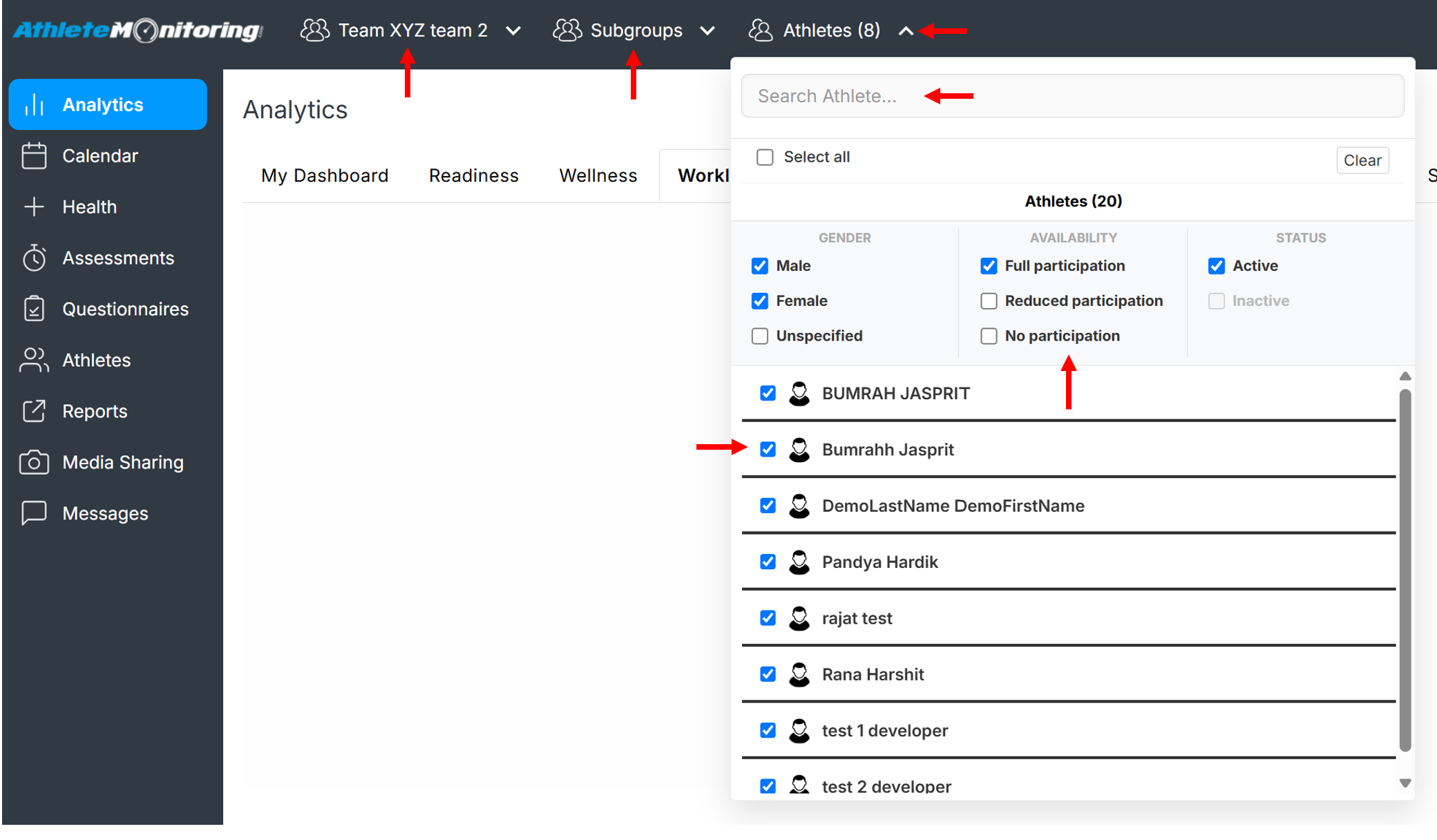
Select one or more teams and subgroups and open the Athlete selector. Then enter the athlete name in the search box. Alternatively, you can refine the displayed list by selecting the various filters.
To select only one athlete, deselect all athletes (check/uncheck Select all) and select only the desired athlete.
From the athlete menu
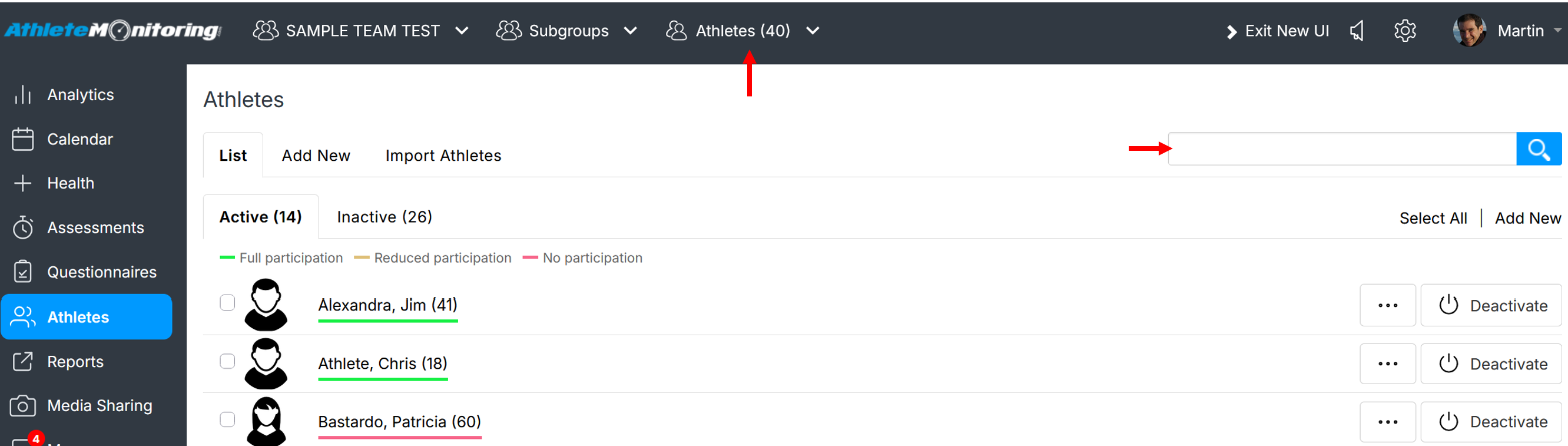
To refine the selection of the Athlete top selector, enter the athlete first or last name in the search box located in the top right corner.
From the global user menu
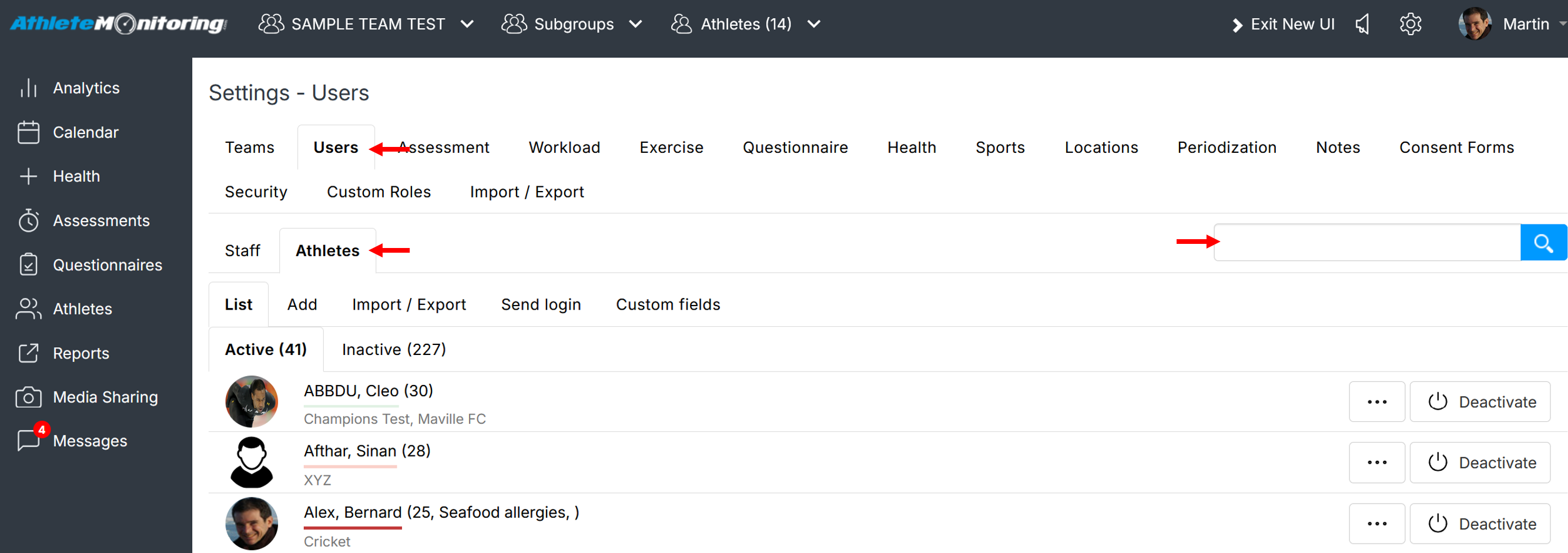
Open the Users-Athletes menu, and enter an athlete first or last name in the search box located in the top right corner.
Adding athletes
Athletes can be added manually or imported from Excel spreadsheet. This section explains how to do both.
Manually adding athletes
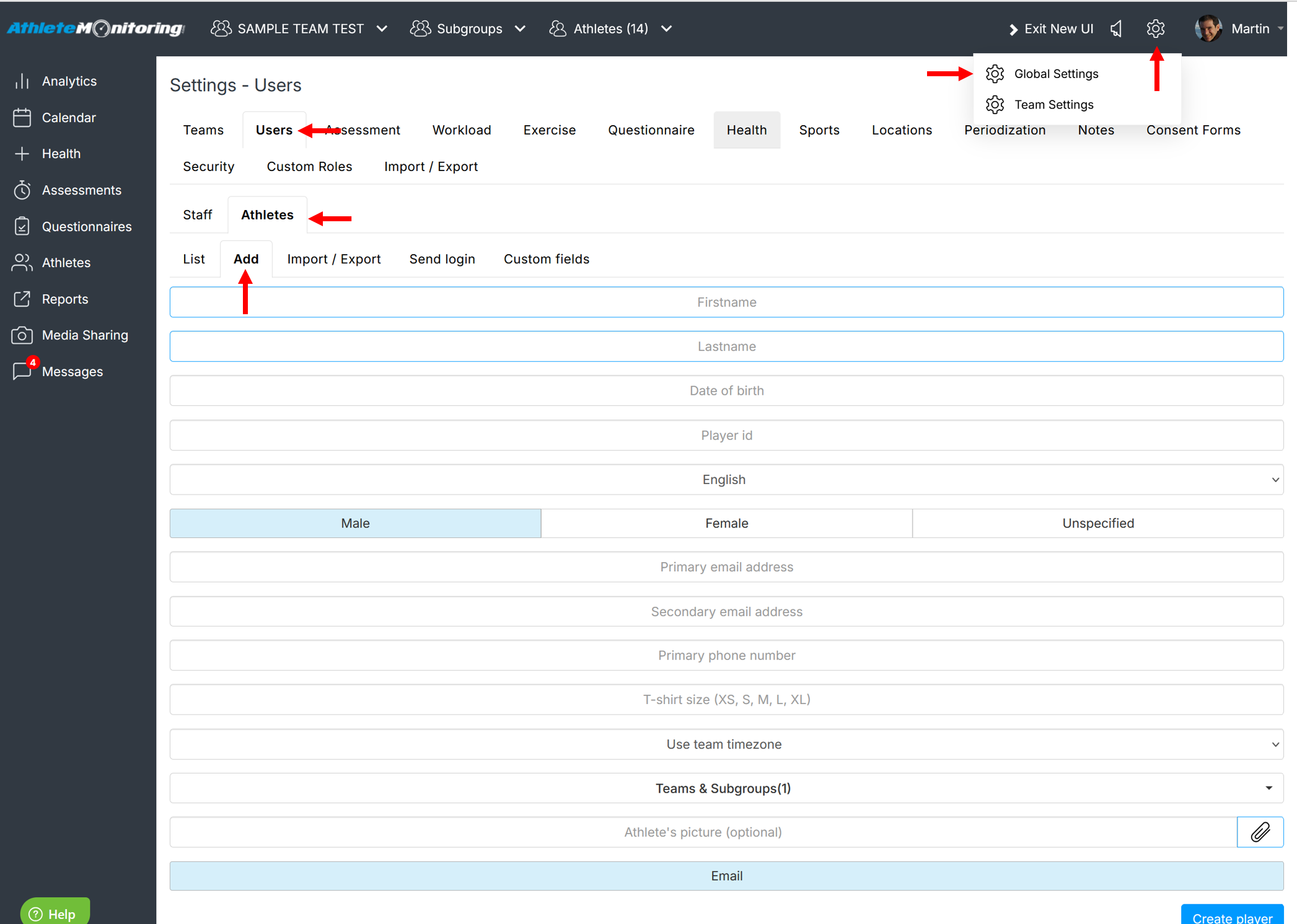
The simplest way to add an athlete is to open the Athletes menu and select the Add tab. Then enter the required information (outlined fields indicate a mandatory value) and save. If the primary email address is entered, the invitation is sent to the athlete immediately.
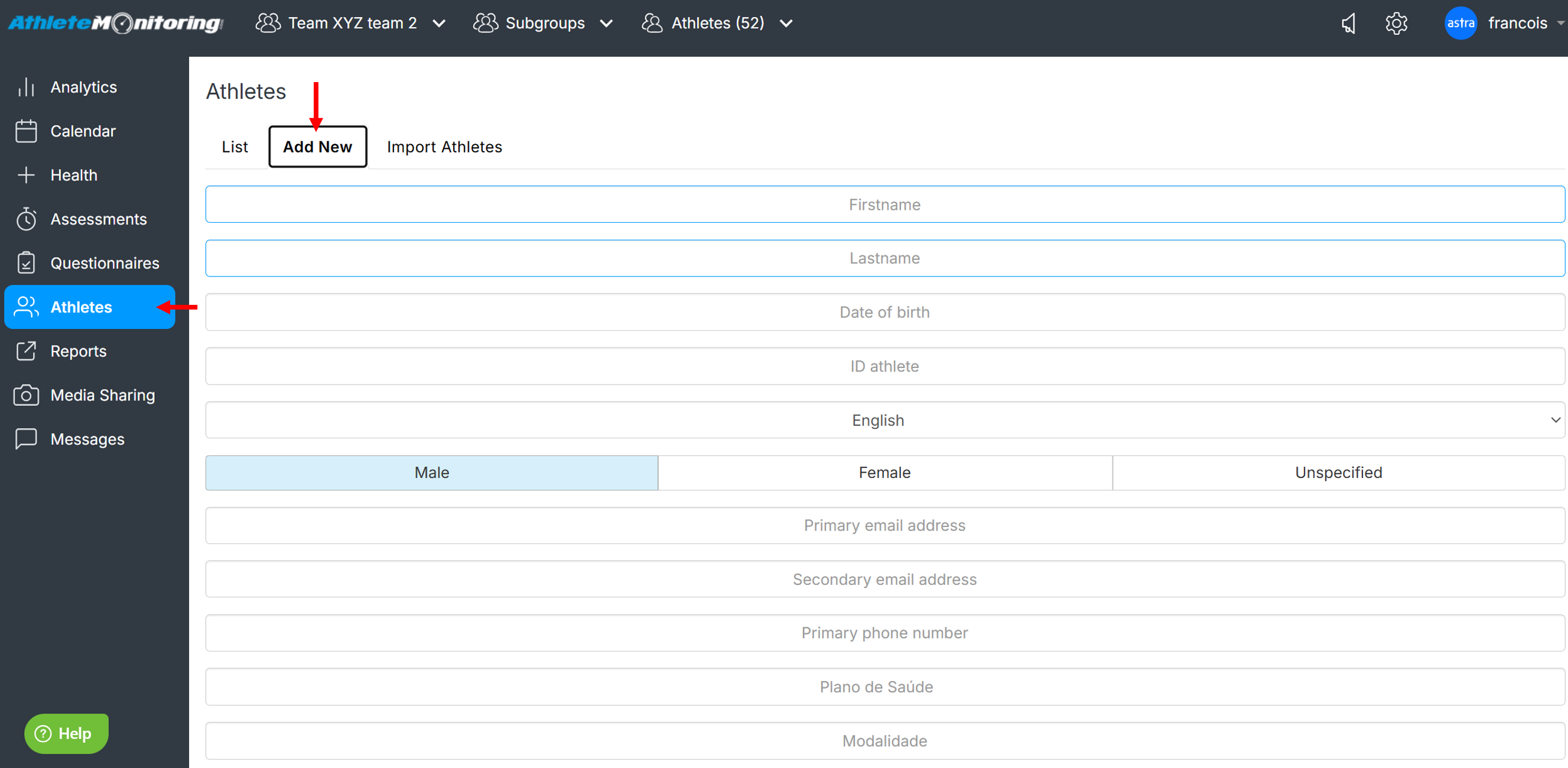
Athletes can also be added from Global Settings, open Users-Athletes-Add tab.
Importing athletes
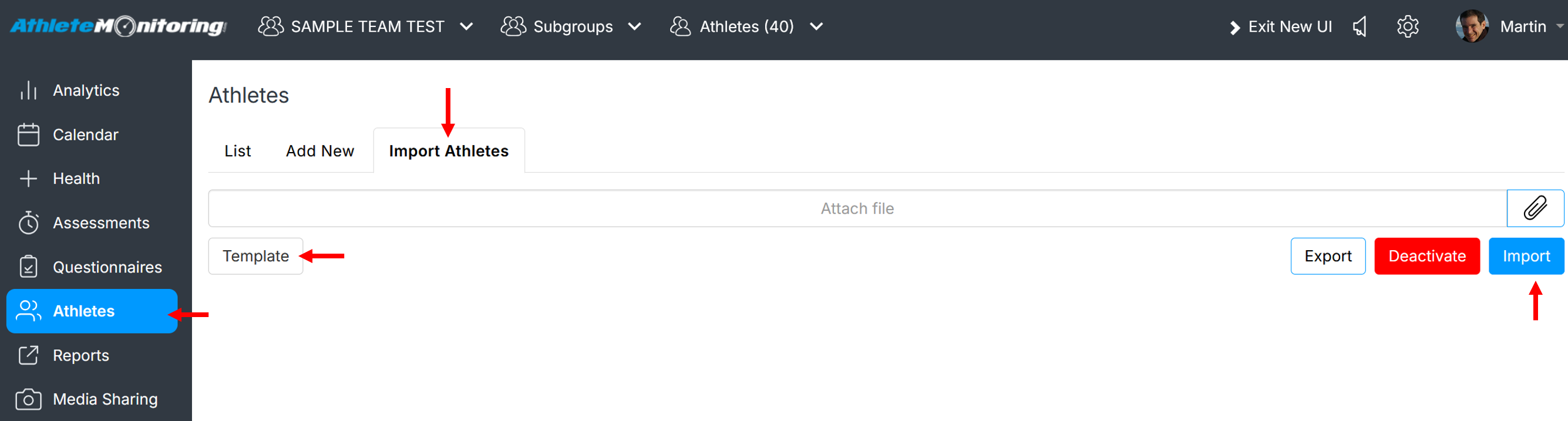
To save time, it is also possible to create multiple athlete accounts quickly by uploading list of athletes in the Excel of CSV format. However, make sure to use the AthleteMonitoring-generated template to prepare your list prior to import.
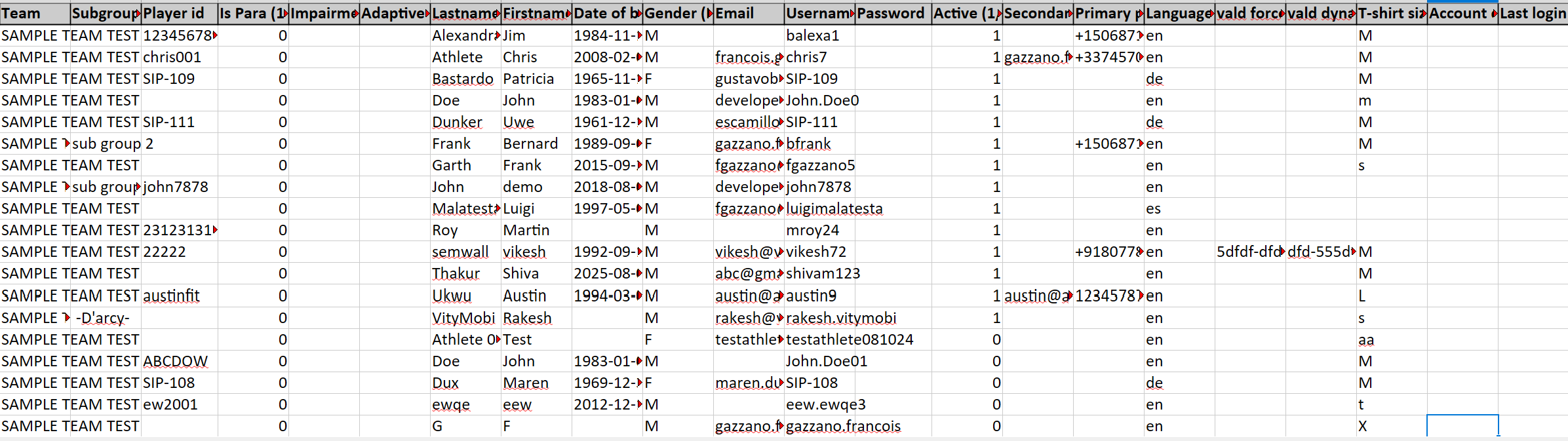
It is also possible to export existing athletes to use as a guide. To avoid import errors, make sure to enter the information exactly as described in each column header.
If you are planning to regularly update your list, make sure to enter a unique Athlete ID number in the Athlete ID column. The system will use this information to map data during successive imports. When Athlete ID is not set, duplicate records may be created.
Once you have imported the list, you'll need to send login invitations to your athletes.
Batch sending login invitations
If you have imported a list of athletes, or need to send (or resend) login invitations to several athletes, open the Athlete menu of Team menu, select to whom invitation(s) should be sent, and click Send Login information. All selected athletes will receive a new invitation to set / reset their unique password.
If you've selected SMS, and entered a valid mobile phone number in the athlete profile, athletes will receive their login information as a text message.
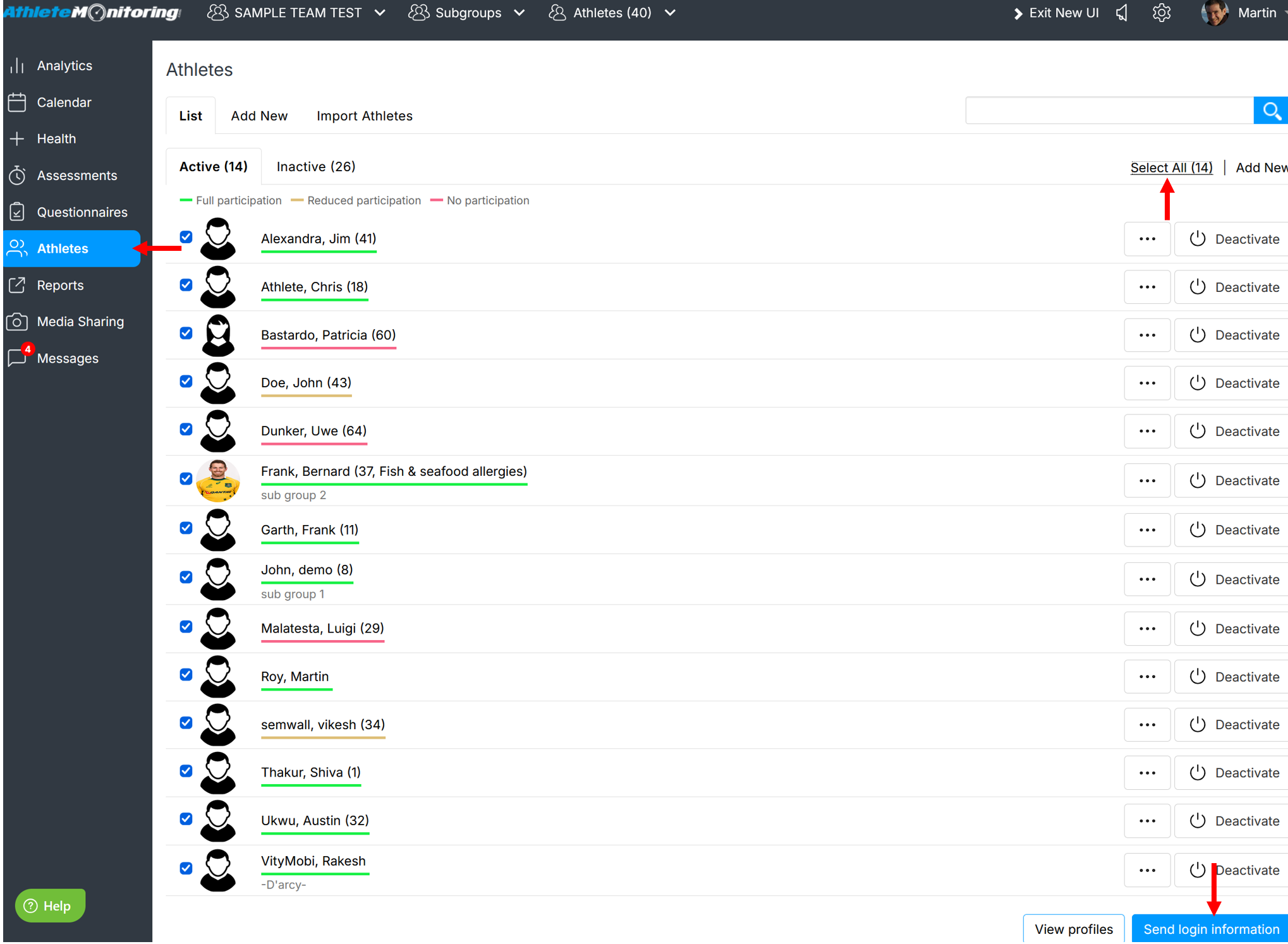
It is also possible to send login information from Global Settings-Users-Athletes.