This section explains how to customize the assessment module at the team/ group level.
Activating the assessment module
To activate the Assessment module, open Team settings - General, look for the Assessment section and click on the Staff button (blue=activated). If you wish to enable athletes to access assessment features, also select the Athlete button.

Configuring team-specific assessment options
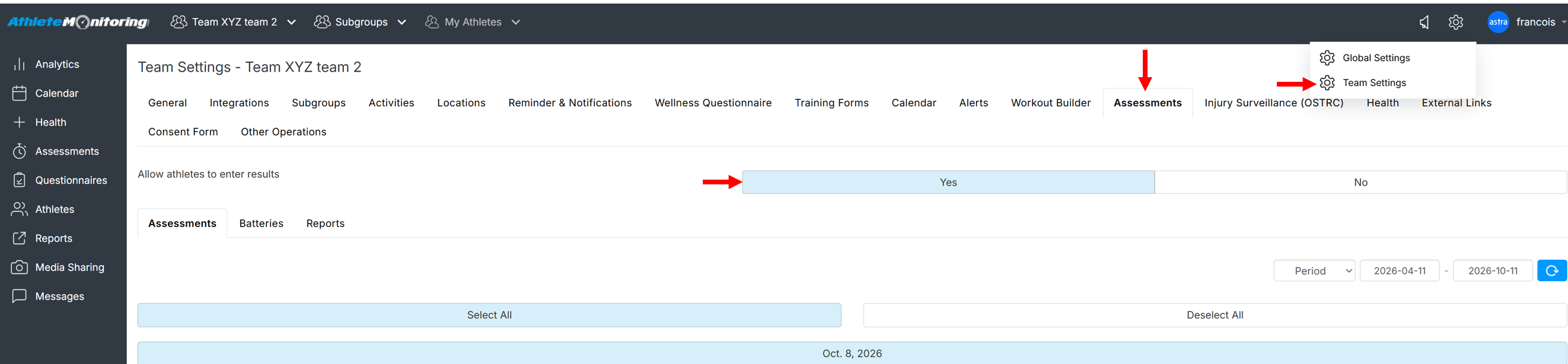
To configure the Assessment module, open Team settings - Assessments
Configuring raw data export options
By default, raw data export files do contains athlete names. If you wish to export files with non-identifiable information (ie: anonymized), go to the General-Reports section and select Yes

Allowing / disallowing athletes to enter/edit their own results
To prevent athletes to enter their own results select Team settings-Assessments-Allow athletes to enter results and select 'No'
Disabling assessment dates, test batteries and reports
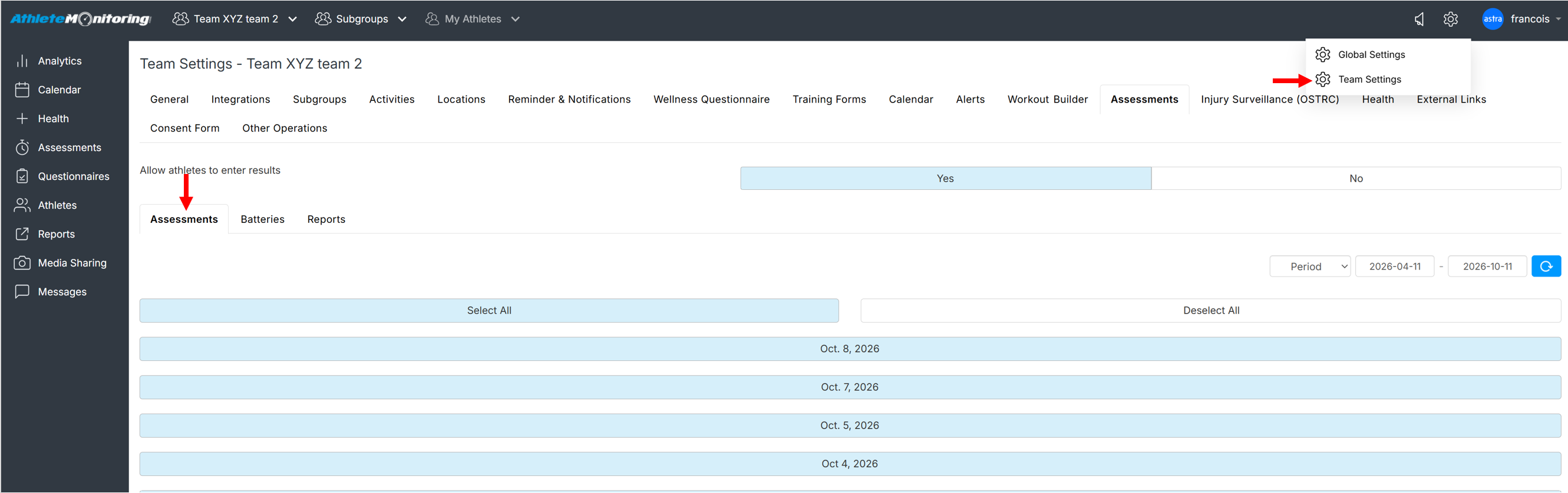
To remove specific assessment dates from the date entry form, analytics and reporting modules select Team settings-Assessments-Assessments and click on each date you wish to remove (button should turn white). Then save.
To remove test batteries and reports for the selected team, open the Batteries and Reports tab and deselect the desired options.
Was this article helpful?
That’s Great!
Thank you for your feedback
Sorry! We couldn't be helpful
Thank you for your feedback
Feedback sent
We appreciate your effort and will try to fix the article