This tutorial explains how to configure the assessment module.
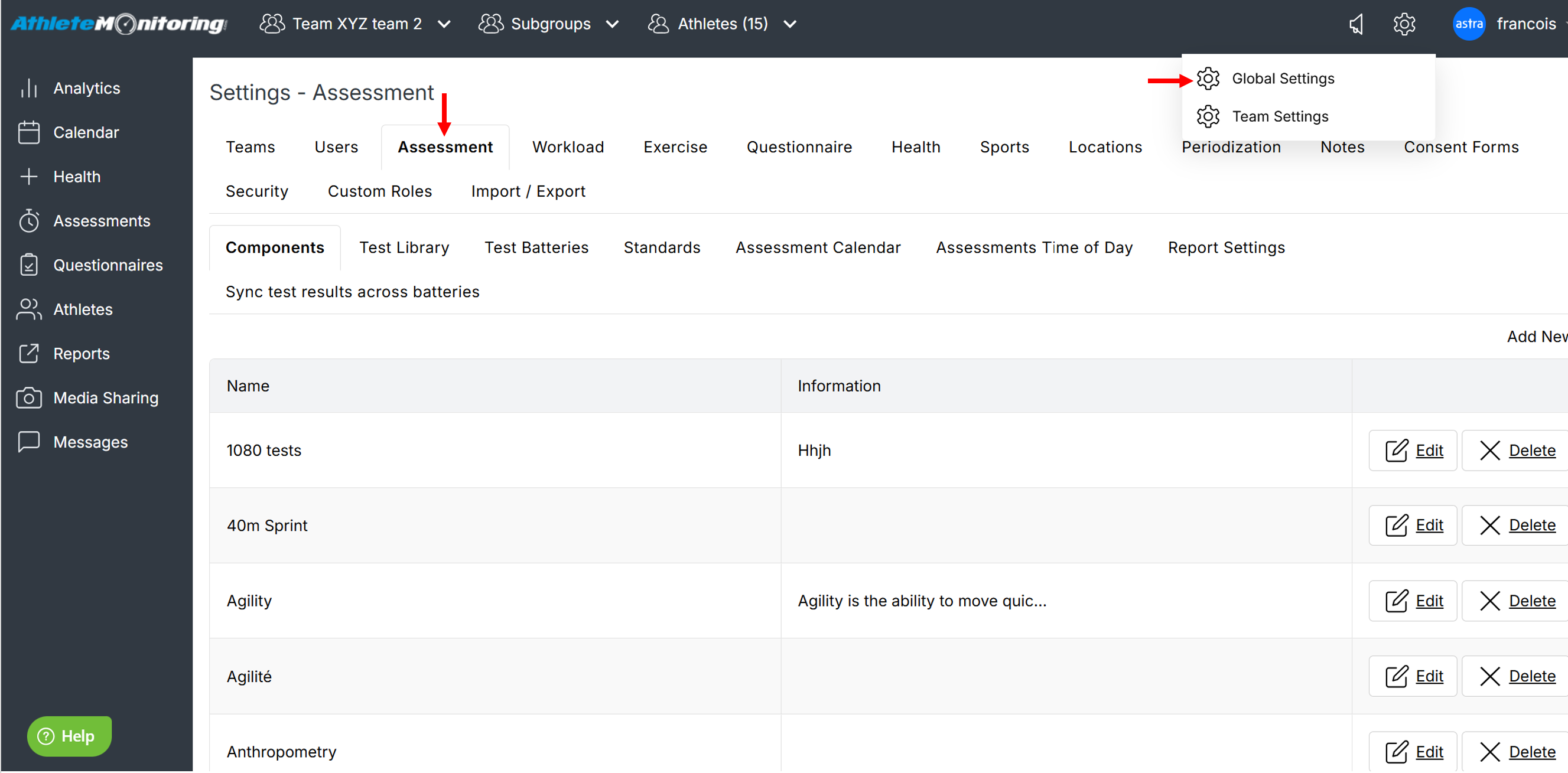
Configuring components or category of tests
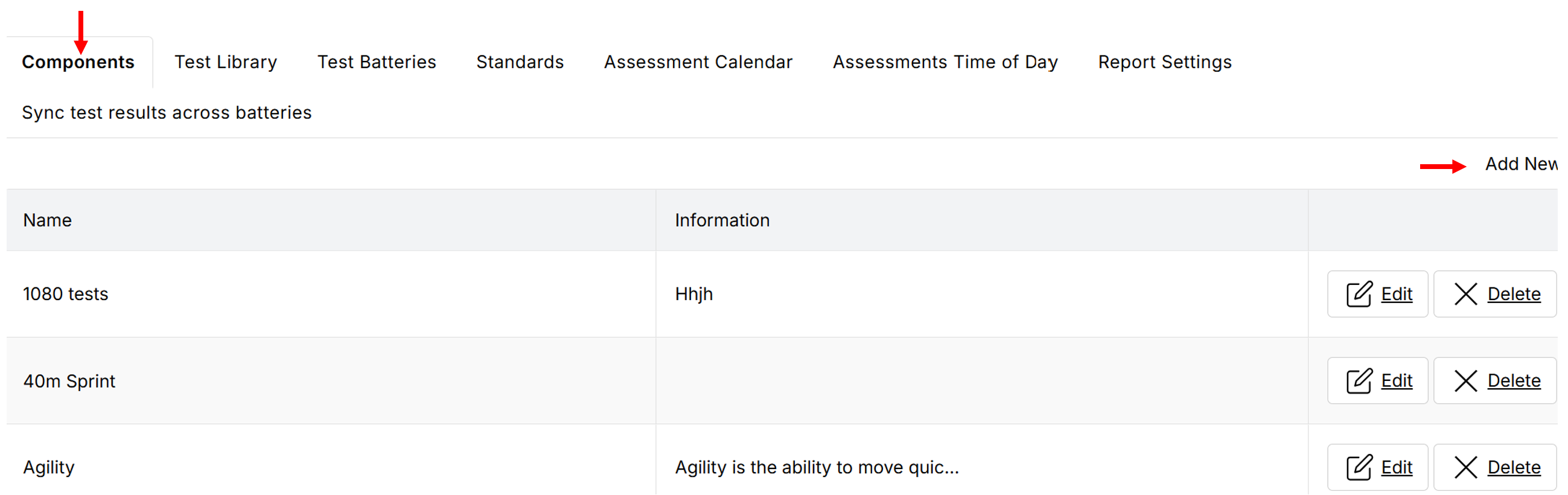
Components are used to group tests under specific categories when generating reports. To add a new component,
click Add New enter a name, a description and save.
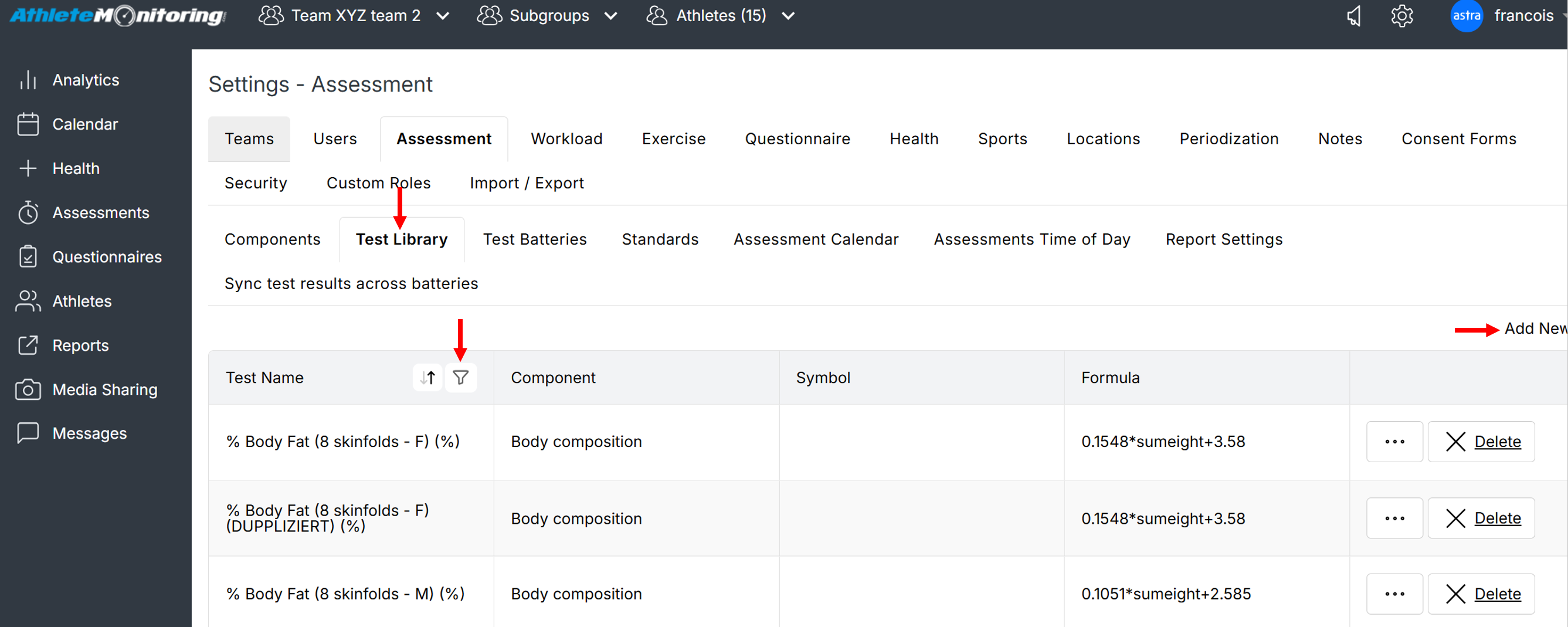
Adding or editing tests to the test library
To add a new test or measurement, open the Test Library tab and click Add New. To search for a specific test, click the funnel icon displayed on column headers. To modify an existing test, click on the test name.
Configuring tests
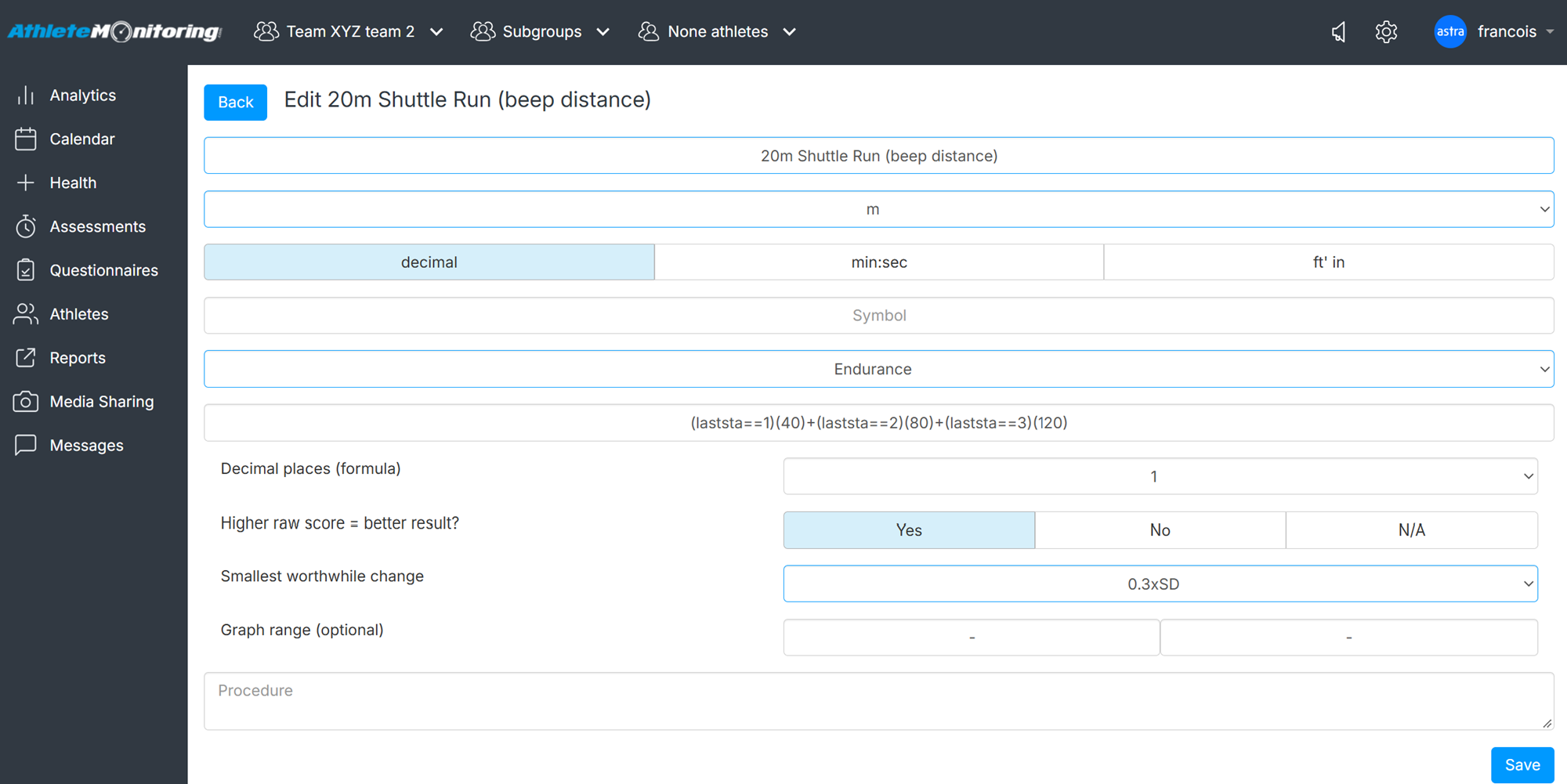
Test name: Name of the test or measurement
Unit: Unit in which results will be expressed
Decimal-min:sec-ft'in: type of data to be recorded (select decimal to record numbers)
Symbol (optional): list of 5-7 lowercase letters representing the test in formulas
Component: category under which the test will appear on reports
Formula (optional): used to calculate results
Operators you may use in formulas
+ (addition)- (subtraction)
/(division)
* (multiplication)
^ (power)
() parentheses
Variables you may use in formulas
age = athlete age calculated using the birth date, according to the information stored in the athlete profile
gender = athlete gender (M or F)Any test’s symbol (bweight = body weight, for
example)
Important: Symbols should only contain lowercase letters (eg: a symbol such as "20mSprint" will not work but "twmsprint" will).
Decimal place: number of decimals
Higher raw score = better result?: used to interpret progression rates (ie: pushups will be set to 'Yes', sprint time will be set to 'No')
Smallest worthwhile change: used to determine the threshold above-under which change will be deemed as significant
New research recommends using a fraction or multiple of the individual results' standard deviation (SDx0.1 to SDx2) as the smallest meaningful /worthwhile change (SWC).You can specify the formula that will be used to calculate the test's SWC when creating or editing a test. This calculation is used to assign white, red and green color on individual assessment graphs, individual profiles and when test results are displayed on the team dashboard.
Graph range (optional): used to adjust spider graph on individual profiles.
Useful links
Was this article helpful?
That’s Great!
Thank you for your feedback
Sorry! We couldn't be helpful
Thank you for your feedback
Feedback sent
We appreciate your effort and will try to fix the article