
AthleteMonitoring offers a fully configurable alerts and multifactorial risk scoring system with evidence-based interpretation and customizable recommendations. This article explains how this system works.
Overall Risk Calculation
Step 1
Each metric included in the risk calculation formula (when the monitoring icon is enabled) is analyzed using your preferred methods (Team Settings-Alerts) and evidence-based thresholds, to determine high or medium or low risk alerts.
Step 2
The system attaches points to each alert:
High risk (red)= 2 pts
Medium risk (yellow)= 1pt
Low risk /no alert (green)=0 pt
Step 3
The Risk score is calculated by adding all the points, and dividing the total by the maximum achievable points (the score that would be achieved if all selected metrics would have red alerts, or 2pts for each metric). The result is then converted into a percentage.
Step 4
The athlete’s overall risk colour is then assigned based on the risk score percentage.
Risk Score <60% = Low risk /no alert (green)
Risk Score >60% = Medium risk (yellow)
Risk Score >80% = High risk (red)
Risk Thresholds
General Alerts
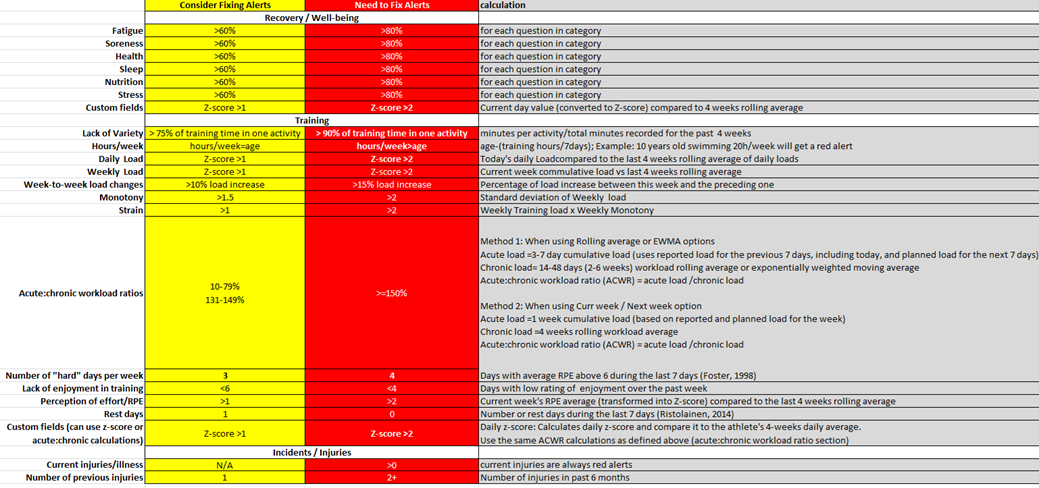
Wellness Alerts
Each answer is graded 0-6pts. The wellness questionnaire overall score is calculated by adding and converting in percentage the points associated with each answer selected by the athlete for category of questions. A total percentage score is given for each category of questions, and the average percentage score of all categories is used to calculate the questionnaire's overall score.
Interpretation of scores
>60% = yellow alert
>80% = red alert
Wellness Custom Fields Alerts
Wellness custom fields are analyzed using individual Z-scores (using a 4-weeks rolling period), for each variable and athlete. The type of alert is assigned based on daily z-score level.
Low score alerts
Z-score < -0.99= Normal range - No alert
Z-score ≥ -1= Low - Yellow alert
Z-score ≥-2= Very low - Red alert
High score alerts
Z-score < 0.99= Normal range - No alert
Z-score ≥ 1= High - Yellow alert
Z-score ≥2= Very High - Red alert
Menstrual Cycle Alerts
Menstrual cycle data is automatically analyzed according to the logic below. When a potential problem is detected, alerts are immediately displayed.
Workload/training alerts
Session RPE (sRPE) load and related measures are analyzed using the selected acute:chronic ratio formula (Team setting-Training Forms-ACWR formula (sRPE)).
All other workload-related metrics (including GPS data) can be analyzed using the selected z-score method, or the selected acute:chronic ratio formula (Team setting-Training Forms-Custom Fields).
Acute:chronic ratio optimal zone is 0.8-1.5 by default. These values can be modified in Global Settings-Workload - ACWR Optimal Range.
Z-score are compared to the 4-weeks rolling average, for each variable and athlete. The type of alert is assigned based on daily z-score level.
Low score alerts
Z-score < -0.99= Normal range - No alert
Z-score ≥ -1= Low - Yellow alert
Z-score ≥-2= Very low - Red alert
High score alerts
Z-score < 0.99= Normal range - No alert
Z-score ≥ 1= High - Yellow alert
Z-score ≥2= Very High - Red alert
Health-Related Alerts
Number of current injuries/illnesses
Number of previous injuries
Any custom question used in the OSTRC Questionnaire
Assessment Alerts
Upon the type of interpretation selected when setting up the test battery from which the tests will be loaded on the readiness dashboard, AthleteMonitoring can interpret changes in results using the smallest worthwhile change (SWC) method, or the age-gender-test specific standards/normative data of your choice.
The SWC approach takes into account the mean, the standard-deviation and a fraction / multiple of this standard-deviation of the athlete's historical data. Meaningful changes are automatically represented by red or green cells, based on the type of test (Higher raw score = better result option in Test Settings).
Custom Questionnaire Alerts
Each questionnaire score is calculated by adding the points associated with selected answers. The total is then analyzed based on the interpretation scale defined in questionnaire settings.