Assessment calendars must be configured if your test battery is set to the Calendar option. Once configured, you will be able to record results and generating reports by selecting the Assessment name, instead of selecting specific days.
Assessment calendar periods will also be visible on team calendars and workload overview graphs.
Editing the assessment calendar
To add an assessment calendar entry, open Global settings-Assessment-Assessment Calendar and click Add New. To edit an existing entry, click on a name in the Assessment Name column.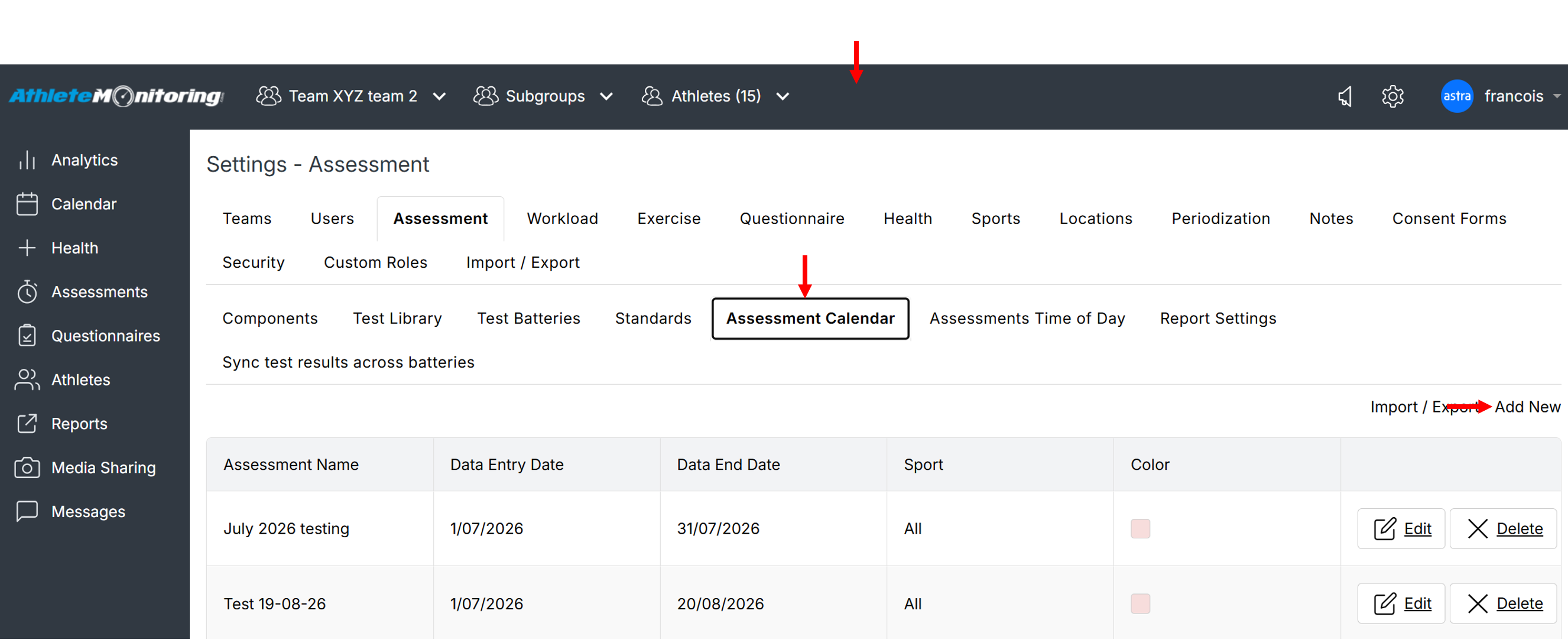
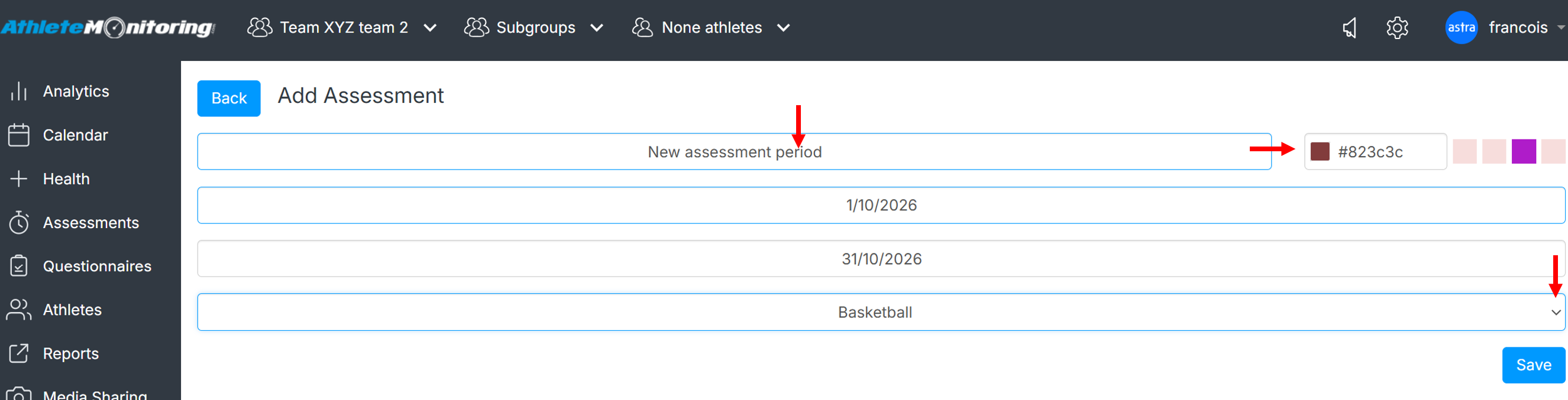
Then, enter a name, select a colour, select a date range and a sport (select All if the assessment calendar entry applies to all your teams/sports) and save.
Important: once you have recorded data, DO NOT change the assessment dates associated with this data. Changing or deleting assessment may result in data loss.
Was this article helpful?
That’s Great!
Thank you for your feedback
Sorry! We couldn't be helpful
Thank you for your feedback
Feedback sent
We appreciate your effort and will try to fix the article