
Adding test batteries
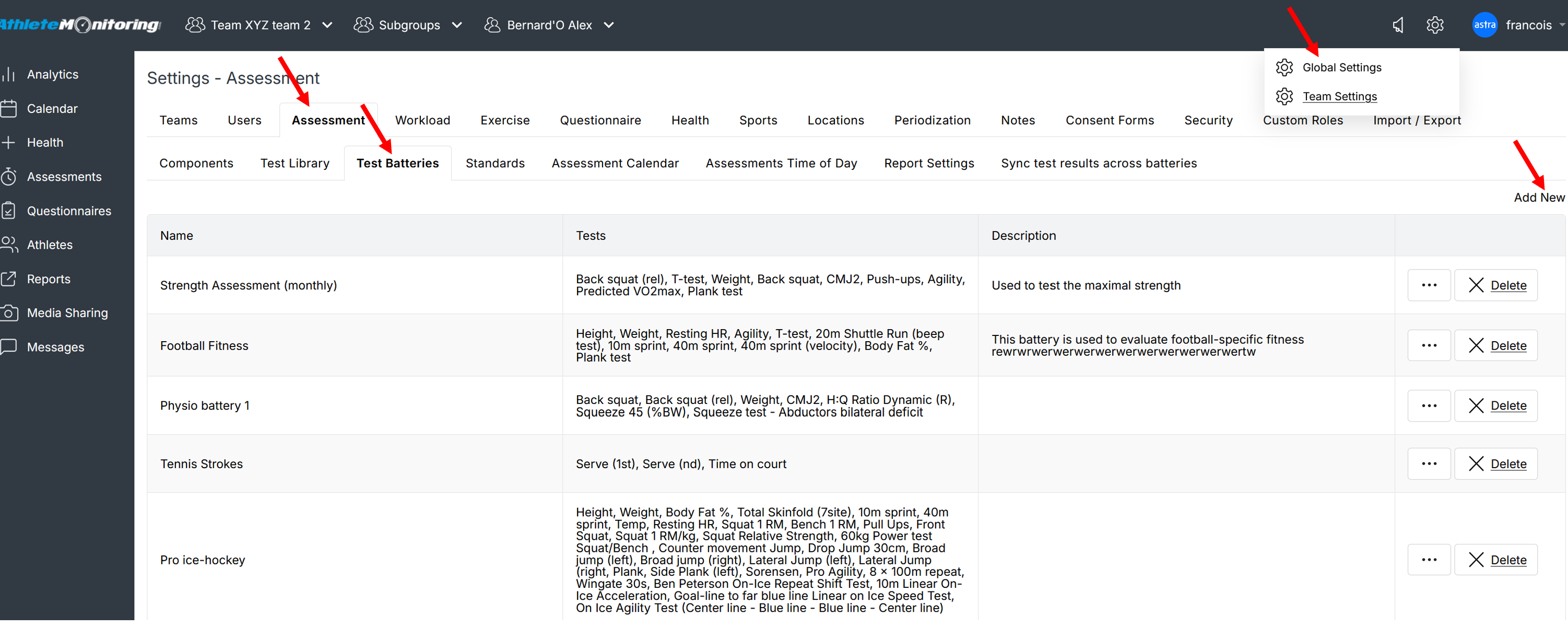
To add a test battery, make sure to add your tests first in the Test library, then open the Test battery tab and click Add New.
Test Battery parameters
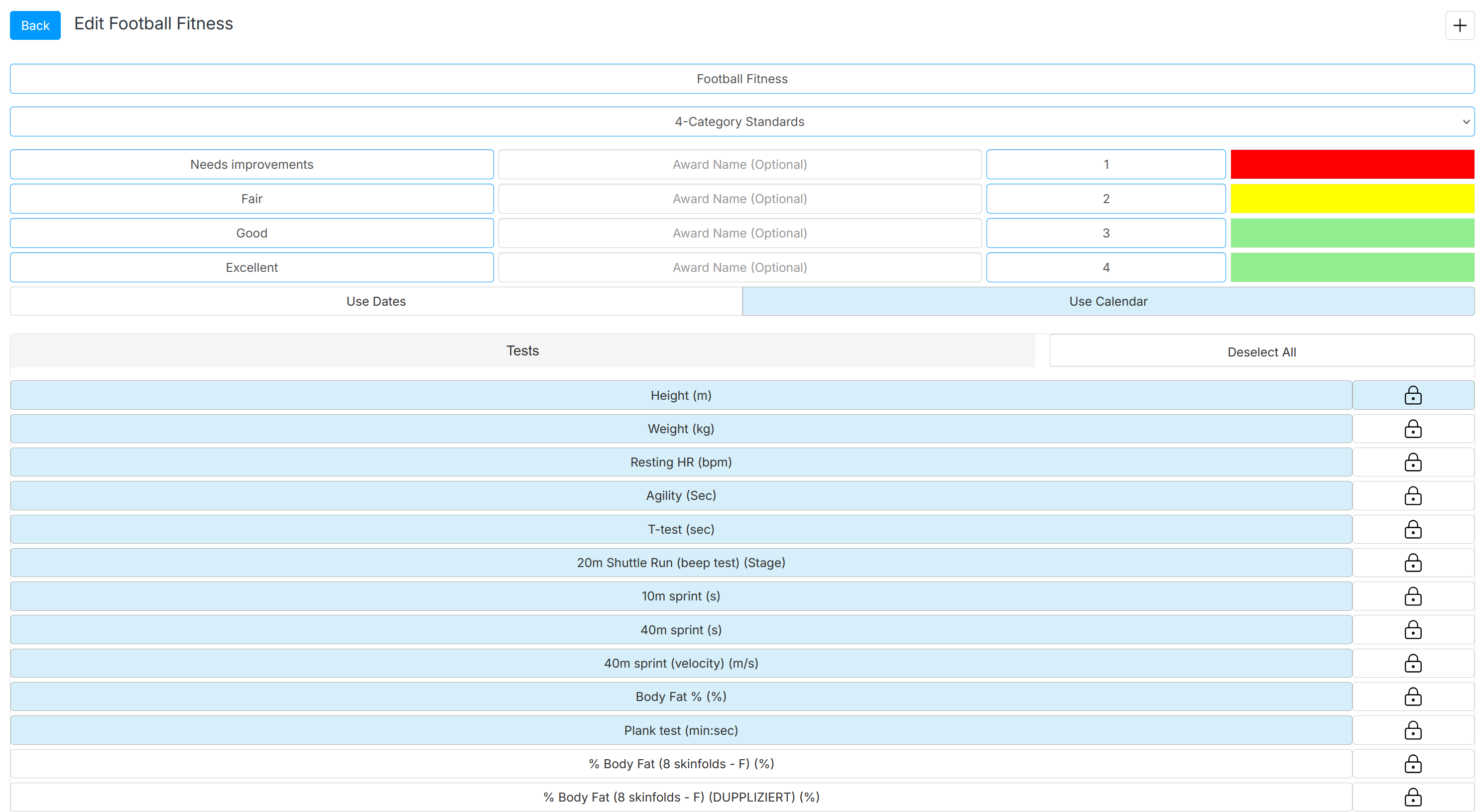
Battery name: The name of the next battery
Method of interpretation of results: Smallest worthwhile change (improvement rates) or custom standards
Category names: the name associated with each standard zone
Award names: the name of the 'award' associated with the category
Numeric values: the number of points associated with the category
Colours: colours associated with the category (click to change)
Use date: enter results for specific days
Use calendar: enter results for a specific date range
Tests: The list of available tests. Click on each test you wish to include (button will turn blue).
Cloning a test battery
To clone a test battery, click the ... button and select Clone
Once cloned, the new battery and attached standards can be modified independently. Changes will not affect the original battery.
Editing a test battery
To edit an existing test battery, click on its name in the Name column, or click the ... button and select Edit
Restricting a test battery to the Health section
To restrict a test battery to the Health section of the platform, toggle the 'Medical' icon and save. Once done, data entry and reporting will be only accessible through the Health section.

Restricting specific tests to Admin users
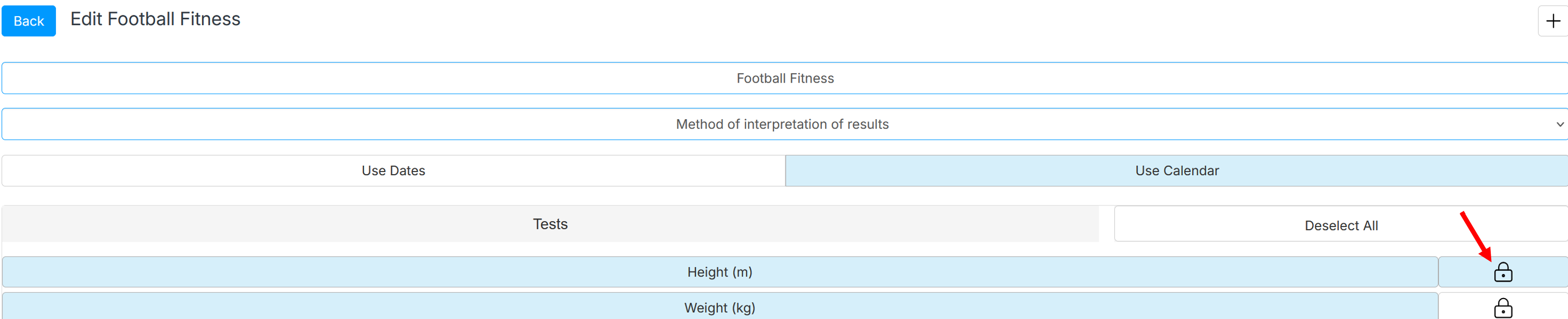
To restrict a test to administrative users, toggle the 'Lock' icon and save.
Creating a Multifunctional / Grading System
This is only applicable to test batteries using standards / normative data
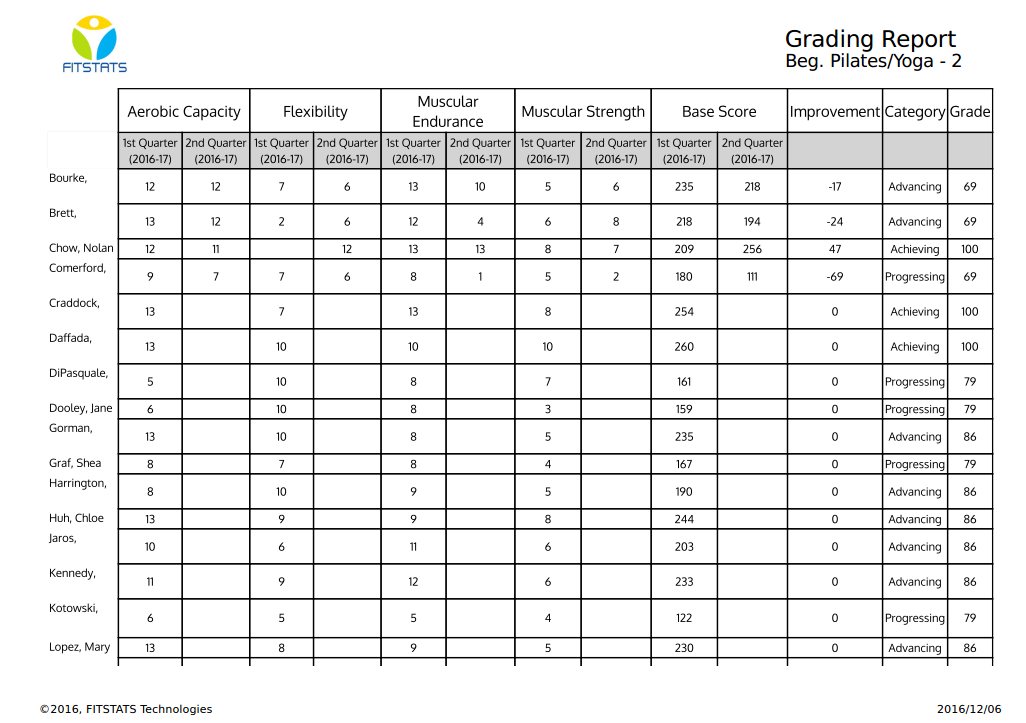
Step 1 - Select the test battery of your choice, click the ... button and select Grading
Step 2 - Define the weighting coefficient (enter 1 if you don’t want to weight each assessment component in a specific fashion)
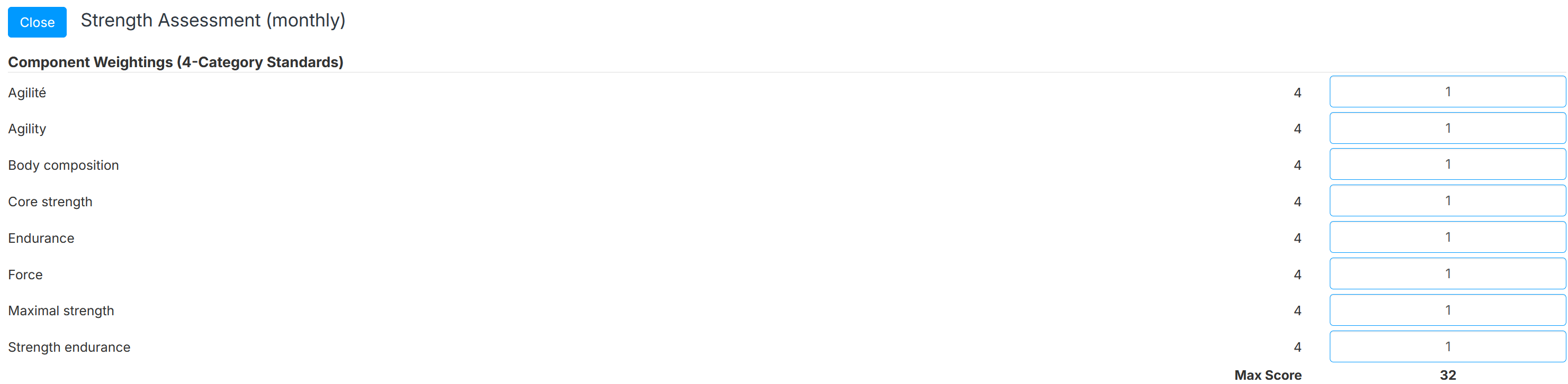
Define the Grading/scoring scale / Categories table (contact us if you aren’t sure)

Step 3 - Setup improvement points (optional)
- AthleteMonitoring calculates the global score for the previous assessment, and subtracts previous score to the current one to calculate Improvement points.
- AthleteMonitoring adds/subtract the Improvement points to the current global score to obtain a final assessment score.
- AthleteMonitoring looks for the value matching the final assessment score in the grading table, and returns the associated grade.
If you do not want to use improvement points in the grade calculation, select None in the improvement points section.
If you want to use improvement points in the grade calculation, select Improvement Bonus in the improvement points section.
Advanced users only - If you want to use improvement points AND having grade adjusted based on the level of improvement, select Improvement Table in the Improvement Options section, enter the improvement points matching the grades in the table and save.
